FAQ
My printer is stuck with error 11407
GoKlipper (1) is not starting properly, it's most likely due to a printer configuration issue.
Please check the information in I got 11407 or my printer doesn't boot anymore (PLACEHOLDER LINK )
- GoKlipper is Anycubic's reimplementation of Klipper
How can I print multicolor / with the ACE from Orca Slicer?
Filament mapping is stored in the gcode and depends on your slicer configuration.
In Orca, you can add 4 filaments and they will be mapped with the 4 slots of the ACE Pro from left to right. You can then either export gcode or print directly.
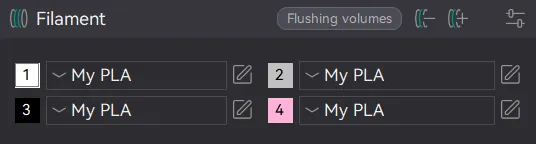
Later, if you need to print with only one filament, you’ll need to remove the other and keep only one before exporting gcode or printing.
After installing Rinkhals, the camera doesn't work in Anycubic apps
The camera cannot work both in OctoApp / Mainsail / Fluidd and Anycubic apps at the same time. Rinkhals uses mjpg-streamer by default (available as an app).
When the app is started and enabled, the camera will be available in OctoApp, Mainsail, Fluidd and other Moonraker clients.
You have to disable and stop the app to make the camera work in Anycubic apps.
Can I use OctoApp with Rinkhals?
Yes, Rinkhals supports OctoApp out of the box. To work properly, OctoApp needs the Moonraker app and one of Mainsail and Fluidd app to be enabled.
You don’t need the octoapp companion from this repo: Rinkhals.apps for OctoApp to work. This companion app will allow you to get live notifications if this is something you want.
I cannot see my camera in OctoApp / Mainsail / Fluidd
First, make sure the mjpg-streamer app is enabled as described above. Then you will need to add your camera in Mainsail or Fluidd for it to be available in other apps. Default settings will work.
How do I make Spoolman work?
Follow this guide: https://github.com/utkabobr/DuckPro-Kobra3/issues/54#issuecomment-2540040852
The code modifications are already in Rinkhals.
How to get SSH access?
If Rinkhals is running on your printer, you can already connect to port 22 on your printer.
If you’re running stock firmware or any other, you’ll need to use the SSH SWU tool. This tool will start a SSH server on port 2222 on any firmware at any time.
- Download the right SWU tools for your printer
- Extract and get the SSH tool
- Copy the tool as
update.swuon a FAT32 USB drive in aaGVscF9zb3Nfdirectory (same as during Rinkhals installation) - Use any SSH client to connect to your printer IP on port 2222